
Troubleshooting
Sometimes things might not work out the way it's supposed to. When this happens we recommend the following processes to help you (and us) figure out what the problem might be.
Managed Scene Capture
Captured cameras do not align with exported geometry
If component export enables UseWorldOffset, managed capture must use the same UseWorldOffset and WorldOffset values. Components are rendered and OBB cameras are generated in their original Unreal world coordinates; the offset is applied when geometry and camera positions/targets are serialized.
Capture fails because of camera names
Every camera ViewName must be unique within a capture request. The name is also the stable identity in the destination camera selection set. Capturing another camera with an existing name skips that camera rather than overwriting its resources, so use a new prefix when generating a distinct camera set.
Scalar material channels look gamma-corrected
Roughness, Metallic, Specular and Ambient Occlusion are linear scalar data. Do not interpret or import these textures as sRGB. Base Color may use sRGB metadata; inspect the captured image color-space value rather than applying one setting to every channel.
Emissive values are clipped or missing
Managed Emissive capture is linear HDR raw material emissive and is stored as floating-point RGB data. Do not read it from the 8-bit pixel array or convert it to an 8-bit texture before processing. This differs from the public Scene Capture emissive frame, which represents pre-tonemap scene radiance.
World normals point in the wrong direction
Managed WorldNormal is stored in the Simplygon WorldNormal material channel as a non-tangent-space normal, and its pixel values remain encoded in Unreal world-space axes. Configure the caster with the same WorldNormal channel name. When importing into a material that uses the standard Simplygon parameters, map WorldNormal to NormalTexture. Do not swap the Y and Z texture components: geometry and camera coordinates are converted when serialized to the Simplygon scene, but material texture values are not.
A callback reports another job or the scene context becomes invalid
Simplygon Subsystem delegates are shared by all jobs of that operation. Compare Result.JobID with the job ID returned when the operation started and ignore unrelated results. Keep the managed scene context, source components and callback owner strongly referenced until the workflow finishes, and remove each delegate after its matching result is handled.
A second component export to the same context fails
A managed scene context accepts one component-export attempt. Failures or cancellations after the export transaction begins consume the attempt because the scene may contain partial SDK changes. Cancellation while waiting for the transaction to begin leaves the context reusable. Create a new context after a consumed attempt. Capture and other compatible scene resources may be appended before export and are preserved; the caller must ensure that they are compatible with the export settings.
Visualizing intermediate flattened textures
If you experience issues with material baking we recommend you to visualize the intermediate textures generated during the material flattening process. You can do this by using the following console command:
MaterialBaking.SaveIntermediateTextures = 1The textures are then outputted to "ProjectDir/Intermediate/MaterialBaking". If these look weird, eg having black spots, the problem lies in the Unreal Engine's flattening methods. It might be that you are using a non-supported material node.
TIP
If the intermediate textures have black parts we recommend you to look into the Material Proxy Replace node.
Material Proxy Replace details
The Material Proxy Replace node is a material node that can be used when you want to use a different or simplified material for material flattening purposes.
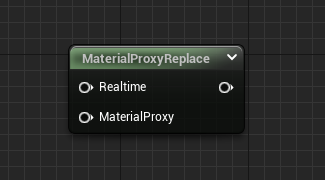
It functions such that it uses the "Realtime" input at runtime, and the “MaterialProxy” input during the generation process.
Exporting scene and pipeline
If you are experiencing issues and need to get in contact with support, we recommend you to export debugging information. This will help us find the problem faster. You allow export of debug information by going to Project Settings → Plugins → Simplygon Plugin and checking the "Debug" checkbox, see figure 1.
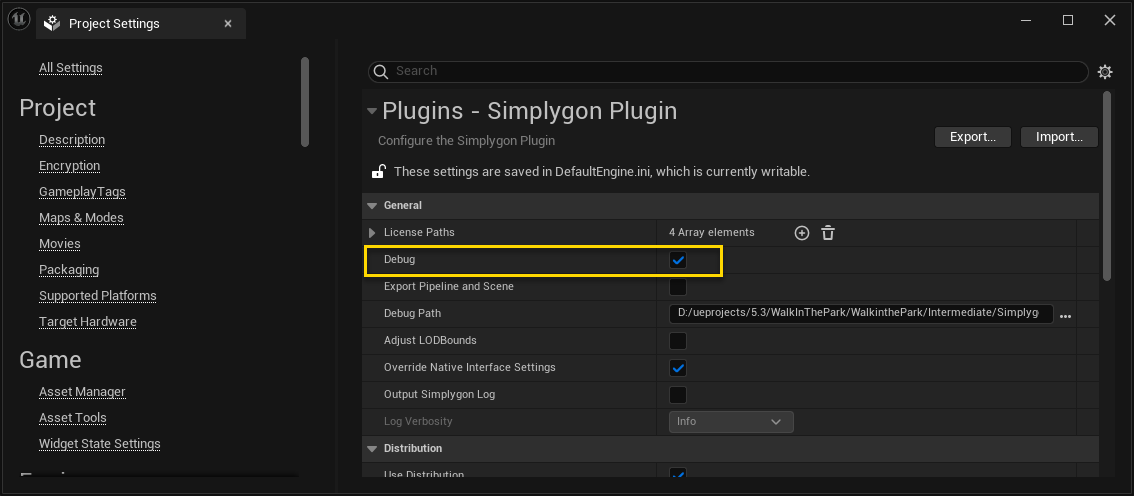
Once this is done (and you've restarted the editor), you'll find export functions in both the LOD Recipe editor and the Stand-In Outliner. If you want to export debug information for the built-in interfaces, see Always export debug information below.
LOD Recipe export
You export the LOD Recipe debug data by clicking the "Export All" button in the toolbar, see figure 2.
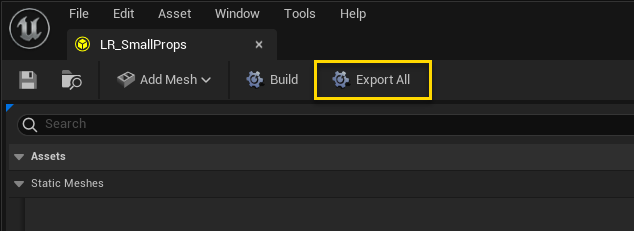
This will export one sgScene file and one pipeline file per mesh that is assigned to this LOD Recipe. If it's only one of the meshes that is problematic it's enough to send us the sgScene that corresponds to that mesh together with the pipeline.
Stand-In export
There are two ways to export debug information for Stand-Ins. These are highlighted in yellow and in blue in figure 3.
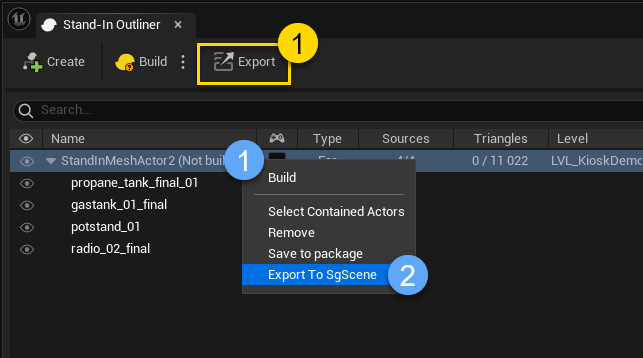
Always export debug information
It's possible to always export debug information whenever you run a Simplygon process. To enable this, go into the Project Settings → Plugins → Simplygon Plugin and check "Export Pipeline and Scene". You can optionally change where the files will be saved by changing the "Debug Path".
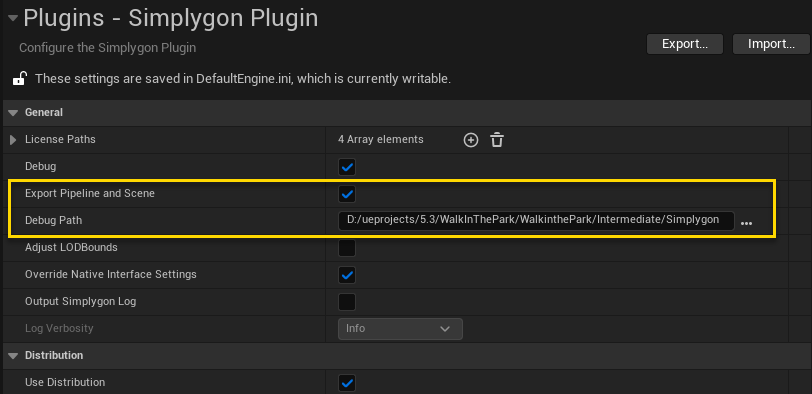
After a restart of the editor, you'll get debug information saved in your chosen folder whenever a Simplygon process is run.